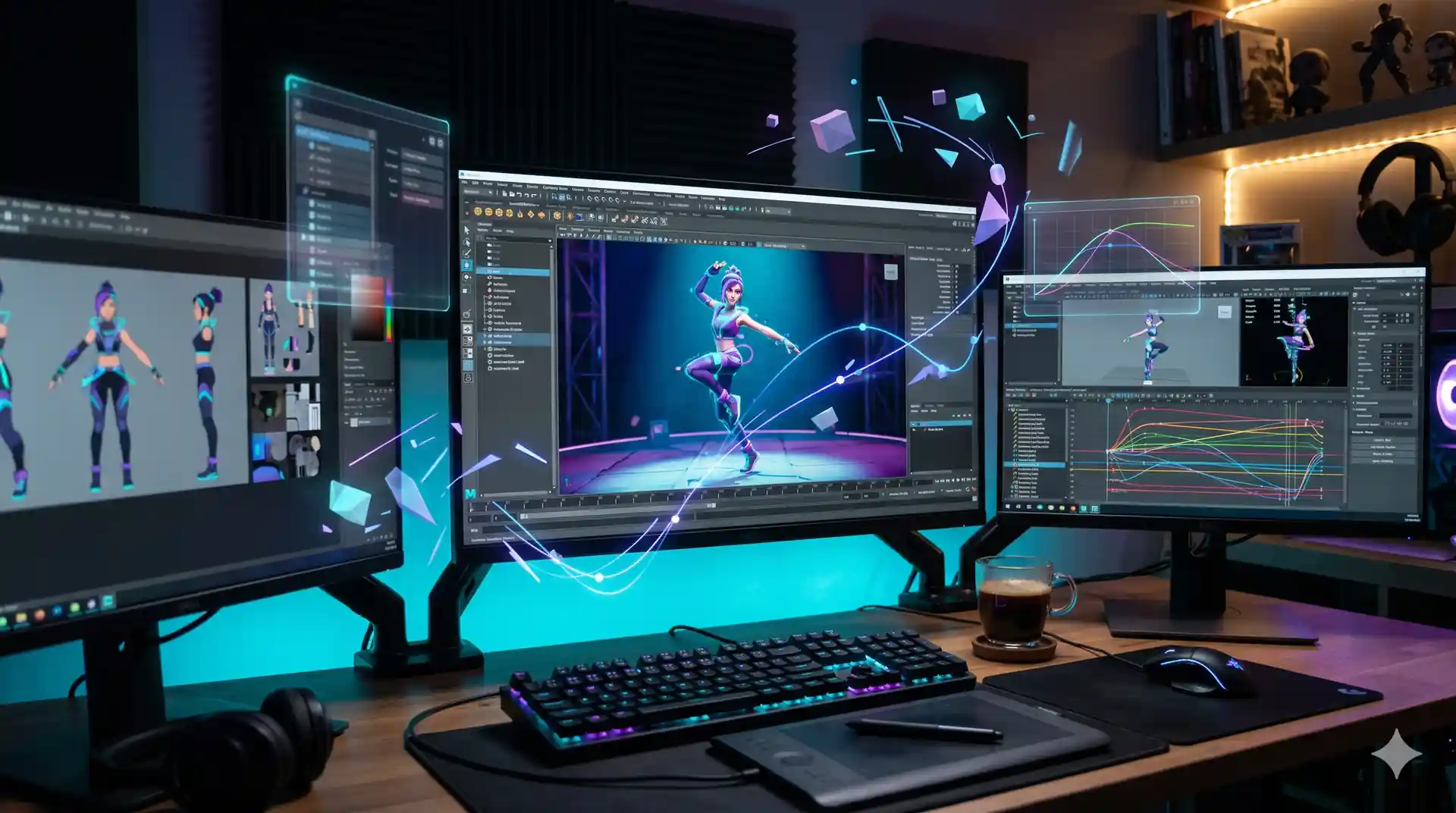
Animated GIFs have become the universal language of the internet—from memes to product demos, tutorials to social media reactions. Yet traditional GIF creation has always been a bottleneck. Converting videos, adjusting frame rates, optimizing file sizes, and handling complex animations required technical skill, specialized software, and time. Enter AI-powered GIF creation: tools that promise to turn any video, image, or text prompt into a polished animated GIF in seconds. In 2026, the GIF creation landscape has been transformed by artificial intelligence, democratizing animation and enabling anyone to create professional-quality animated content.
Why AI Changes GIF Creation
AI-powered GIF creators address the core pain points of traditional workflows:
| Problem | Traditional Method | AI Solution |
|---|---|---|
| Time-consuming | 5-15 minutes per GIF | 10-30 seconds |
| Technical skill required | Requires software proficiency | Natural language or simple clicks |
| Optimization complexity | Manual frame rate and size tuning | Automatic quality/size balancing |
| Customization | Limited by source material | Generate from scratch via prompts |
| Batch processing | Tedious for multiple GIFs | Single-command bulk creation |
| Creative limitations | Limited to existing video footage | Generate AI animations from ideas |
AI tools eliminate the technical barrier, bringing GIF creation to marketers, educators, content creators, and casual users who simply want to share a quick animation without learning complex software.
Top 5 AI GIF Creation Tools in 2026
1. Krikey AI – Best for AI-Generated Animations
What it does: Krikey leads the 2026 AI animation space, generating fully animated videos from text prompts in minutes. Unlike tools that convert existing video to GIF, Krikey creates animations from scratch.
Key Features:
- Text-to-animation generation (describe your idea, Krikey builds it)
- 90% faster than traditional animation production
- Multiple character styles and environments
- Export directly as GIF or video
- Batch generation for multiple scenes
Best for: Marketing teams, educators, YouTube creators, and anyone who needs animated content without filming or hiring animators.
Pricing: Free tier available; premium plans from $9/month.
2. PicsArt AI GIF Creator – Best for Photo-Based GIFs
What it does: PicsArt's AI GIF tool lets you enter text prompts to generate animated GIFs, or upload photos to create looping animations with AI-enhanced effects.
Key Features:
- Text prompt GIF generation
- Photo-to-animation conversion
- Artistic style filters (3D, watercolor, neon, etc.)
- Sticker and effect library
- One-click background removal
Best for: Social media content, personalized GIFs, artistic animations.
Pricing: Free with watermarks; premium removes watermarks ($9.99/month).
3. Filmora – Best for Video-to-GIF with Effects
While not purely AI-driven, Filmora integrates AI tools alongside robust video-to-GIF conversion, making it the most complete desktop solution for creators.
Key Features:
- AI background removal
- Intelligent auto-subtitle generation
- Template-based GIF creation
- Effects library (1000+ built-in effects)
- Batch GIF export
Best for: Content creators who want both GIF generation and post-processing.
Pricing: One-time purchase ($60) or subscription ($50/year).
4. Canva – Best for Beginner-Friendly GIF Making
What it does: Canva's GIF maker uses templates and drag-and-drop simplicity, with emerging AI features for automatic animations and background suggestions.
Key Features:
- 1000+ GIF templates
- Drag-and-drop editor
- Stock animation library
- AI-powered background suggestions
- Mobile and desktop versions
Best for: Non-technical users, marketers, social media managers.
Pricing: Free (with limitations); Canva Pro ($180/year) for full library access.
5. Ezgif (Enhanced 2026 Version) – Best for Power Users
What it does: The classic online GIF editor, now with AI-powered optimization. Upload a video, trim frames, adjust settings, and download instantly.
Key Features:
- AI frame detection for optimal frame selection
- Intelligent color palette optimization
- Batch processing
- Conversion from 50+ video formats
- 100% free, no account required
Best for: Developers, technical users, bulk conversion workflows.
Pricing: Free.
How to Create GIFs with AI: Step-by-Step Guide
Method 1: Text-to-GIF (Krikey AI or PicsArt)
Step 1: Describe Your Idea
- Open Krikey.ai or PicsArt
- Write a detailed text prompt: "A cartoon character doing a happy dance with confetti falling, bright colors, loop twice"
- More detail = better results
Step 2: Generate
- Click "Generate" and wait (usually 20-60 seconds)
- AI creates a full animation based on your description
Step 3: Customize (Optional)
- Adjust duration, speed, or size if the tool allows
- Add text overlays or effects
Step 4: Export
- Choose GIF format with desired dimensions (640x480 or 1080x1080 for social media)
- Download and use immediately
Why it works: You're not limited by existing video. You can create entirely new animations from imagination.
Method 2: Video-to-GIF with AI Enhancement (Filmora or Canva)
Step 1: Upload Video
- Launch Filmora or Canva
- Drag-and-drop your video file (.mp4, .mov, .webm accepted)
- Tool automatically detects video length and quality
Step 2: Trim & Optimize
- Select the portion you want as a GIF (AI can suggest key frames)
- Adjust frame rate (10-15 fps recommended; lower = smaller file size)
- Choose width (600-800px balances quality and size)
Step 3: Apply AI Effects
- Use AI background removal to isolate your subject
- Let AI auto-enhance colors and contrast
- Add filters or stickers from library
Step 4: Export
- Export as GIF (compression algorithm optimizes automatically)
- File should be under 5MB for best social media performance
- Download ready to share
Why it works: Combines the power of AI enhancement with the reliability of using real footage.
Method 3: Batch GIF Generation (Ezgif API or Krikey Bulk)
For creators managing multiple assets:
- Prepare multiple video files or prompts in a folder
- Use the tool's batch mode (Ezgif supports bulk processing)
- Apply consistent settings across all files
- Export all GIFs simultaneously
- Download packaged file with all results
AI GIF Tools vs. Traditional Methods: Quick Comparison
| Factor | Traditional | AI-Powered |
|---|---|---|
| Time to create 1 GIF | 10-20 min | 30 seconds – 2 min |
| Software needed | Photoshop, FFmpeg, or premium tool | Web browser only |
| Learning curve | Steep | Minimal |
| Cost | $20-500+ upfront | Free – $10/month |
| Creative freedom | Limited to source material | Generate from imagination |
| Optimization | Manual tuning | Automatic |
| Consistency across batches | Requires templates | Perfectly consistent |
Real-World Use Cases for AI GIFs in 2026
Marketing & Social Media
Product teams use Krikey to generate demo GIFs showing features in action without filming. A healthcare app might generate a GIF of the onboarding flow; a SaaS tool creates usage tutorials. These animations drive engagement—LinkedIn posts with GIFs see 3x higher engagement rates.
Documentation & Support
Technical writers generate step-by-step tutorial GIFs using Filmora's AI enhancements. GitHub issue submitters use PicsArt to create quick bug-report animations. No more long videos; just 5-second visual explanations.
Ecommerce Product Pages
Clothing brands use AI to animate product rotations. Furniture sites generate GIFs showing items in different rooms. These animations increase time-on-page and reduce return rates.
Meme & Content Creation
The creative community uses Krikey for character animations, Canva for quick meme GIFs, and PicsArt for stylized artist GIFs. What used to require frame-by-frame animation now takes minutes.
Educational Content
Educators generate animated diagrams, biology process animations, and history timeline GIFs to make lessons engaging. Imagine a history teacher using Krikey to animate a medieval battle scene—students remember it far better than reading textbooks.
Tips for Optimizing AI-Generated GIFs
1. Right-Size for Platform
- Twitter/X: 500x300px, under 5MB
- Instagram Stories: 1080x1920px, under 8MB
- LinkedIn: 1200x628px, under 10MB
- Slack: 400x300px, under 2MB
2. Frame Rate Matters
- 12 FPS: Smooth, suitable for web and social media (default for AI tools)
- 15 FPS: Extra smoothness, slightly larger file
- 10 FPS: Choppier but more compact; use for GIFs under 3 seconds
3. Color Palette
- Let AI auto-optimize colors (most tools do this by default)
- Avoid gradients if targeting reduced file sizes
- Test on actual platform before sharing
4. Text in GIFs
- Keep text brief (max 5 words)
- Use high contrast (white text on dark background)
- Avoid thin fonts (they blur in small GIFs)
5. Loop Settings
- Infinite loop: Recommended for social media and web
- 2-3 loops: Better for email (less distraction)
- Once: Rare, but useful for transition GIFs
Common Pitfalls & How to Avoid Them
Pitfall 1: File Size Explosion
Problem: AI tools sometimes generate 20-50MB GIFs, too large for social platforms. Solution: Specify dimensions upfront (640x480), use the tool's compression slider, and test the export. Ezgif and Filmora offer quality/size trade-off controls.
Pitfall 2: Quality Loss on Mobile
Problem: GIFs look crisp on desktop but pixelated on phones. Solution: Test on actual mobile devices. AI tools can over-compress. Choose "high quality" export mode and accept a slightly larger file.
Pitfall 3: Unnatural Animation
Problem: AI-generated characters sometimes move awkwardly or jerkily. Solution: Krikey is the smoothest; start there for character animation. For video-to-GIF, use footage with clear, deliberate motion (avoid shaky camera).
Pitfall 4: Watermarks in Free Tools
Problem: Many free tools add watermarks. Solution: Upgrade to premium ($5-10) or use Ezgif, which offers free watermark-free exports.
Pitfall 5: Overcomplex Prompts
Problem: Text-to-GIF tools struggle with overly detailed prompts. Solution: Keep prompts to 1-2 sentences. "A cat jumping over a fence, bright sunny day" works better than "A tabby cat with green eyes jumping gracefully over a white picket fence with roses blooming, shot from the side, golden hour lighting, cinematic quality."
Frequently Asked Questions
Q: Can AI-generated GIFs be used commercially? A: Yes, most tools (Krikey, PicsArt Pro, Canva Pro) allow commercial use with a subscription or license. Always check the tool's terms. Free tiers often restrict commercial use.
Q: What's the file size limit for email GIFs? A: Most email clients support GIFs up to 10MB, but 2-5MB is safer. Outlook sometimes blocks larger files. Use Ezgif's compression feature to keep GIFs lean.
Q: Can I edit an AI-generated GIF after export? A: Not directly. If you need edits, regenerate with updated settings. Some tools (Canva, Filmora) let you go back to the source project for revisions.
Q: Is AI GIF generation faster than hiring an animator? A: Dramatically faster. A simple 5-second GIF takes 2-3 minutes with AI; a freelancer would charge $50-150 and take 1-2 days. ROI is immediate for bulk content.
Q: Which AI GIF tool works best for brand consistency? A: Canva, because you can save brand colors and templates. Templates ensure consistency across all generated GIFs. Krikey also supports style consistency across batches.
Conclusion: The Future of GIF Creation is Now
AI-powered GIF creation has moved from experimental to essential. Whether you're a marketer creating demo animations, an educator building visual lessons, or a content creator sharing memes, AI tools have made animated content accessible to everyone.
Start today:
- Choose a tool based on your need (text-based? video-based? photo-based?)
- Create your first GIF (takes under 2 minutes)
- Optimize for your platform
- Share and measure engagement
The technical barrier is gone. Animation is no longer a specialized skill—it's a click away. In 2026, the only limit is imagination.
Next steps: Explore Krikey AI or PicsArt today with their free tiers. Create 2-3 GIFs and see how your engagement metrics improve. Share your first AI-generated GIF and join the thousands of creators already automating their animation workflow.

Video2GIF Team